Showing posts with label Web Wednesday. Show all posts

Wednesday, September 21, 2011

Unfriendly and Gross Websites


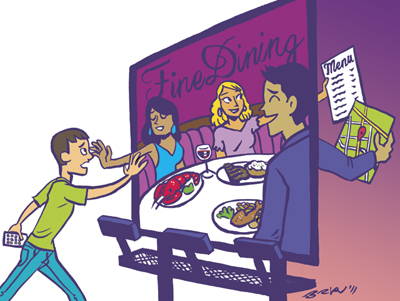
I'm glad nobody has reviewed the websites that I have worked on my with clients as "Mostly Gross, Unfriendly, Not Worth a Return Visit".  On the other hand, Torontoist took a look at local restaurant websites, and their take is pretty accurate.
“Shut it down!”
Gordon Ramsay usually reserves his famous catchphrase for the chefs who foul up dinner service on Hell’s Kitchen, but we’d like to propose another fitting application. After spending a few sanity-testing days evaluating Toronto’s ego-driven, Flash-laden restaurant websites, borrowing his words seems like a good way to slap some sense into this city’s restaurateurs.
While I'm always glad to provide constructive criticism, I do aim for delivery that's a little softer than Torontoist.  Read the full article here.

Wednesday, September 14, 2011

Faster Tabbed Browsing -- Web Wednesday

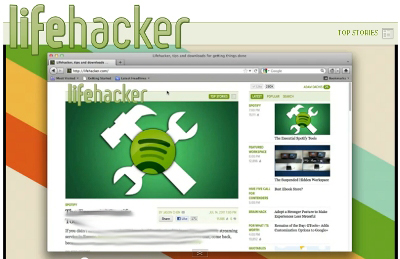
Lifehacker is a great source for tips about computers, mobile phones, and even household hints.  For years, I have been opening multiple tabs whenever I browse the web, whether in Google Chrome (my preferred browser), Firefox, or Internet Explorer.


Learning to open new tabs with a single click have enhanced my browsing experience tremendously, so I'm sharing Lifehacker's Shortcut of Day about tabbed browsing here:

Sometimes you're browsing along the web and you want to open a page but not bother to look at it right this second. You could right-click the link and choose "Open Link in New Tab," but this little keyboard shortcut can save you the trouble. All you have to do is hold down the Control key (on Windows) or Command (on Mac) and click the link you want to open. This will open a tab in the background and you won't have to deal with it right away. You can also do this with bookmarks and bookmark folders that are sitting in your toolbar. Some browsers will even save you a step and allow you to middle click (this generally refers to pushing scroll wheel on your mouse) to perform this action. Either way, it's a handy trick when browsing the web.

Wednesday, July 14, 2010

Web Wednesday: Dog Meets World


Carolyn Lane, founder of dogmeetsworld.org, has created an interesting website with an interesting purpose -- to lift the hearts of underprivileged kids and others by having travelers take photos of them with a little stuffed dog mascot, named Foto, and printing out a hard copy to give them on the spot. The goal is to help the subjects, who may have never seen a photo of themselves, 'see their potential more clearly and that they count.'

According to Carolyn,
My dream is to establish a movement to photograph the children of the world. To seek children in their own settings, print their image to keep for a lifetime. We have replicated Foto, the stuffed dog, to enable scores of world travelers to participate with this intentional project. The dream of Dog Meets World is to empower travelers to make real connections to people in other cultures, in essence to become photo-diplomats. A picture makes anybody a “somebody”. Dog Meets World clothes people in acknowledgment and affirmation and feeds their souls, which indeed is priceless.
The goal of the website is admirable, though it does cost money to participate, and you need a portable photo printer, not something most people take on vacation. Still, it's worth checking out.

Wednesday, June 23, 2010

Web Wednesday: Wordle

Here's an entertaining website that lets you express your creativity. Wordle is a toy for generating “word clouds” from text that you provide. The clouds give greater prominence to words that appear more frequently in the source text. You can tweak your clouds with different fonts, layouts, and color schemes. The images you create with Wordle are yours to use however you like. You can print them out, or save them to the Wordle gallery to share with your friends.

I quickly created this word cloud by asking Wordle to select words from this blog.

click to enlarge

Tip: To save the word cloud as a jpg, use "Print Screen" and paste into a graphics editor. Then crop to remove all but the word cloud itself.

Wednesday, April 14, 2010

Web Wednesday: Four Functional Fixes

I try to pay attention to security and privacy issues on the web, and also try to make my web browsing experiences hassle -free. Here are four tips that will help keep your online life running safely and smoothly.


1. Bypass mandatory registration on sites with free access like The New York Times. Go to bugmetnot.com and get a temporary username and password and avoid the hassle of registration. Doesn't work 100% of the time, but it's very helpful when it does.


2. Safely provide an email address using temporary email accounts, available from a variety of sources.


3. Conceal your password from hackers by following this great advice.


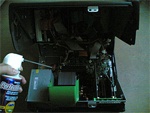
4. Evacuate PC dust bunnies by following these instructions. I cleaned my computer and was amazed by the performance improvement as well as how much quieter it became.

Wednesday, March 10, 2010

Web Wednesday: Life in Toronto

For a good selection of news about Toronto and beyond from a variety of different perspectives, I follow five RSS feeds, and they're required reading (or at least required skimming) for me every day:

  1. The Star - reliable, predictable, and sometimes fun
  2. The Globe and Mail - Toronto - some great content, but it's not updated as often as other sites, and the RSS feed doesn't provide good snapshots or summaries
  3. National Post - Posted Toronto - a little off beat with points of view that are sometimes insightful and sometimes humourous
  4. Toronto Life - a fascinating but often pretentious view of things that matter to some Torontonians
  5. Torontoist - a slightly irreverant and somewhat quirky take on what's happening
RSS feeds that push content to my computer are very important for me to keep organized and on top of things. Don't know what is RSS? It delivers regularly changing web content (like this Playful Disposition) blog to whoever wants it! Read more about it here and let content come to you instead of looking for it yourself.

Wednesday, March 3, 2010

Web Wednesdays: Creating Website Screenshots

Often, you want to save all or part of a webpage and the intuitive ways to do it (like "File/Save") don't get the job done. Here are some tips for easy ways to save images and more to your computer.


If you use Firefox, I highly recommend Screengrab! It's a Firefox add-on that lets you save visible part of window, the entire page, just a selection, or a particular frame of a webpage.

There are lots of other tools that also let you save screenshots. This list of 15 Ways To Create Website Screenshots shows you a lot of them.

Finally, when none of the tools seem to do the job, here's what I do:

1. On your keyboard, hit "Shift" and "Print Scrn"
2. Then do "Control C" to copy or "Edit/Copy"
3. Open a blank PowerPoint presentation
4. Do "Control V" to paste or "Edit/Paste"
5. Crop the image using PowerPoint's crop tool to get rid of extraneous junk.
6. Right click on the image in PowerPoint and select "Save as Picture".

Wednesday, February 24, 2010

Web Wednesday: What's Your Type?

A fun article in The Globe and Mail directed me to four simple questions posed in a playful video by the English design firm Pentagram, where "you can finally hook up with the style of print for which you were destined."

According to The Globe and Mail, thousands of enthusiasts have taken Pentagram's What Type Are You? test, searching for the elusive connection between human character and stylized alphabetical shapes.

Visiting the site at www.pentagram.com/what-type-are-you, I took the test and learned that my typeface is Archer Hairline, "a modern typeface with a straightforward appearance but one that has tiny outbreaks of elegance and tiny dots of emotion only apparent on closer examination."

Archer Hairline

What type are you?

Wednesday, February 10, 2010

Web Wednesday: Text Message Google for Quick Results

Seems that not a lot people know about Google SMS, great service from Google.

Text message your search query to 466453 ('GOOGLE' on most devices) and Google will text message back results. There are lots of ways to get info from Google, including local search, weather, and currency conversion. For example, text "w Toronto" for weather in Toronto, and you'll immediately get a text message back from Google with the information. Google explains it all here. It's a great service, all for the price of a text message, often free with many cell phone plans.

Wednesday, February 3, 2010

Web Wednesday: Readability

Spending a lot of time on the web, I often come across entertaining and useful tools to enhance my productivity online. This week, I'm sharing one of my favorites: Readability.

It's easy to install into any browser by just dragging it to your Bookmarks Toolbar. Then it lets you quickly and easily strip all but the main text out of any web page and re-formats its layout, size, and margins, creating a newspaper or novel-like page for easier text digestion. It doesn't work on every website, but it's amazing for news and magazine sites and lets you read articles with no ads, flashing messages, or other distractions.

Here are before and after shots of an article on The Value of Design in this week's businessweek.com:

before

after
To add Readability to your browser, go here and follow the simple instructions.